How to Bulk Crop Images: A Step-by-Step Tutorial
August 5, 2026
Bulk cropping sounds like it should involve installing software or waiting on uploads. It doesn't. This walkthrough shows the actual four screens involved, from dropping in a photo to downloading a finished zip, plus every crop option you'll see along the way.
Step 1: Drop your photos in
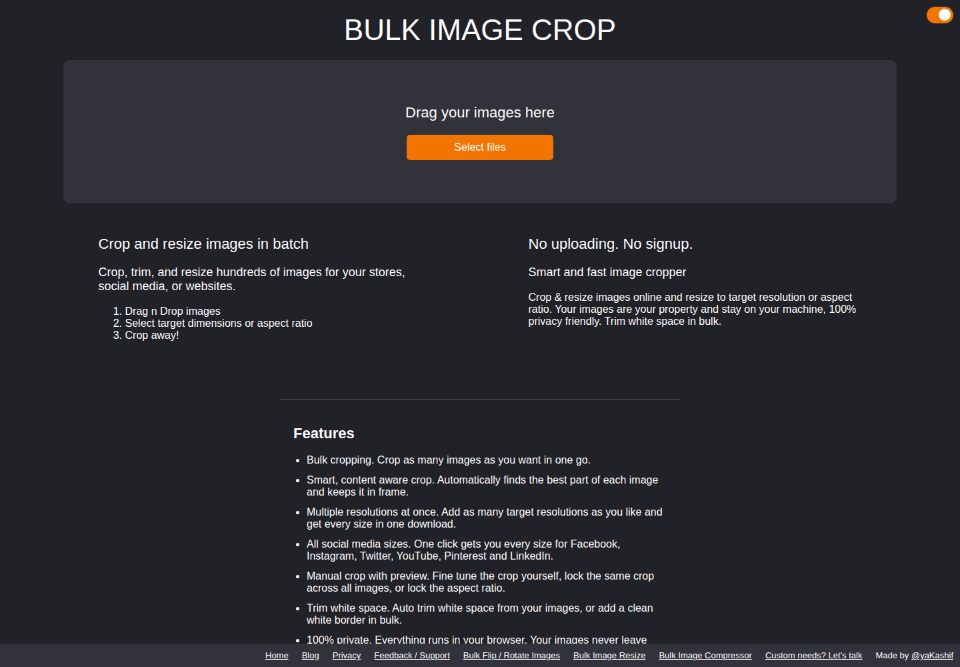
Drag your images onto the upload box, or click Select files to browse for them. There's no account to create and no upload bar to wait on. The files stay in the browser tab, ready to process on your own machine.
Step 2: Choose how to crop
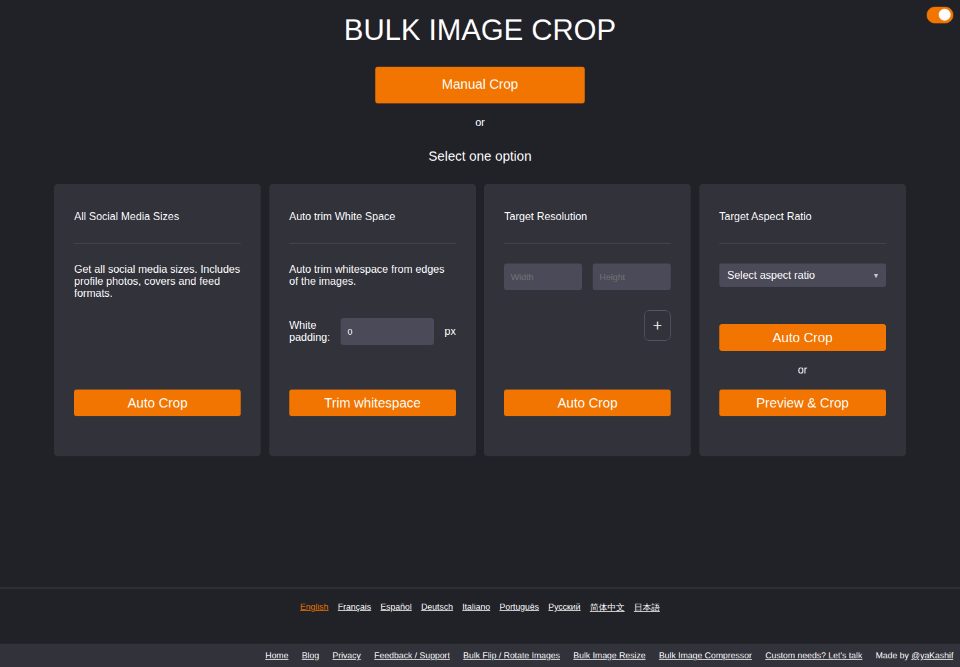
As soon as a photo is in, four crop options appear side by side, plus a Manual Crop button above them:
- All Social Media Sizes: one click produces every size for Facebook, Instagram, Twitter, YouTube, Pinterest, and LinkedIn.
- Auto Trim White Space: strips blank margins from each image, or adds a clean white border of a set pixel width.
- Target Resolution: crop to one or more exact pixel sizes, all in a single pass.
- Target Aspect Ratio: crop to a ratio like 1:1 or 16:9 without fixing the exact pixel count.
- Manual Crop: preview and adjust the crop by hand, and lock the same position or ratio across every image.
Step 3: Set your target size and crop
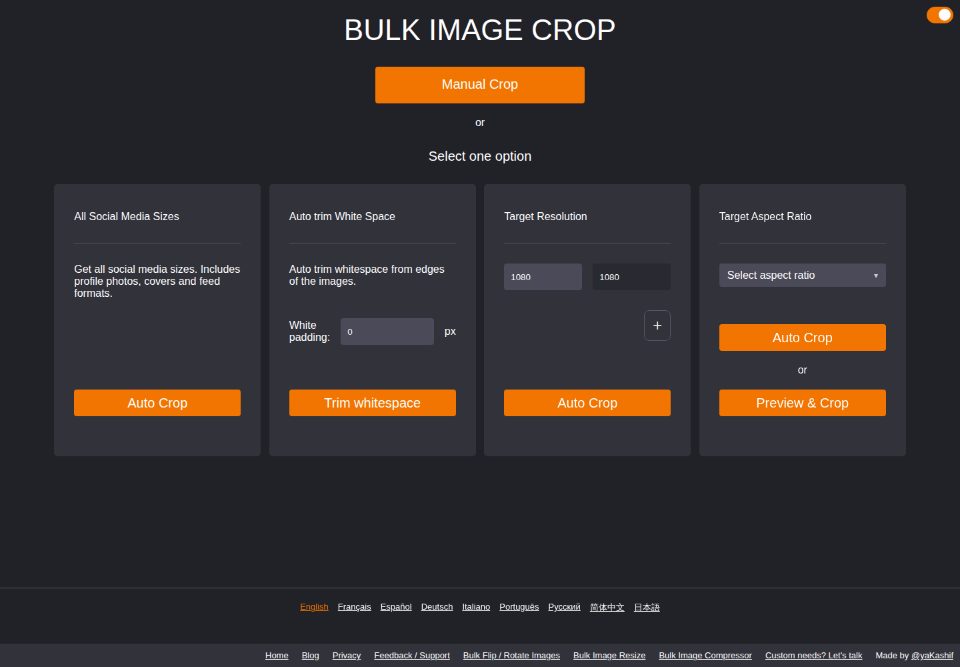
Under Target Resolution, type a width and height (1080 × 1080 here, a common square size for product photos and posts), then click Auto Crop. The crop is content aware: it finds the subject on its own, even when it isn't centered in the original photo, and keeps it in frame.
Step 4: Download your finished images
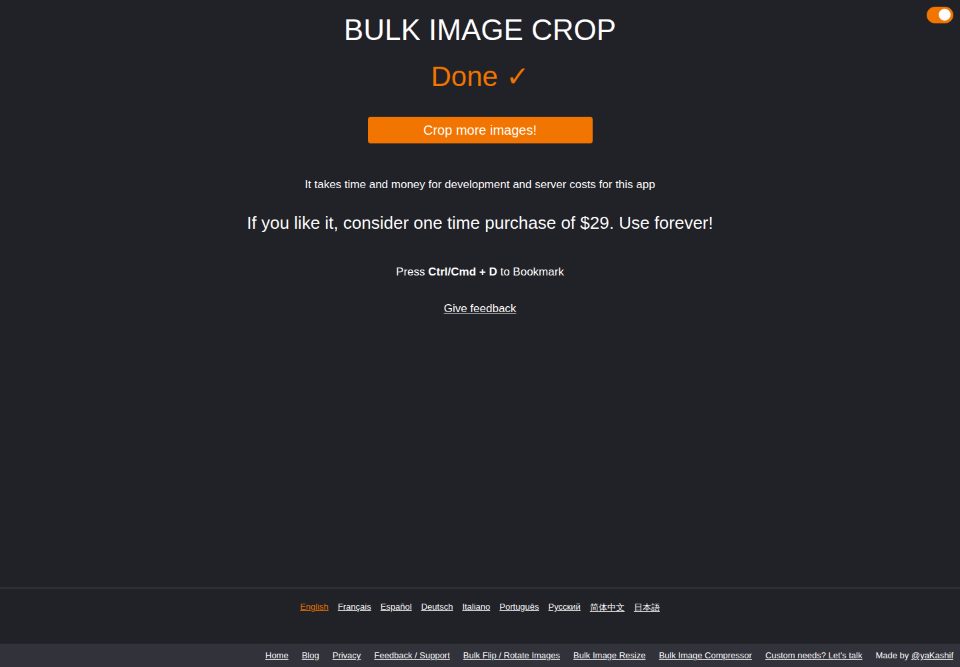
A progress bar tracks each image as it's cropped. Once it's finished, the results are zipped and downloaded automatically. No extra click needed. The screen switches to Done, with a Crop more images! button ready for the next batch.
What else Bulk Image Crop can do
The four steps above cover one photo and one target size, but the same flow scales to a whole shoot:
- Bulk processing. Drop in as many images as you have (tens or hundreds) and they're all cropped in the same pass.
- Multiple resolutions at once. Add several target resolutions and get every size in a single download, organized into folders.
- 100% private. Everything runs in your browser. Images are never uploaded to a server.
- No signup, no watermark. No account, no email, nothing added to your images.
Try the four steps yourself: drop in a photo and see your crop options appear in seconds.
Start cropping